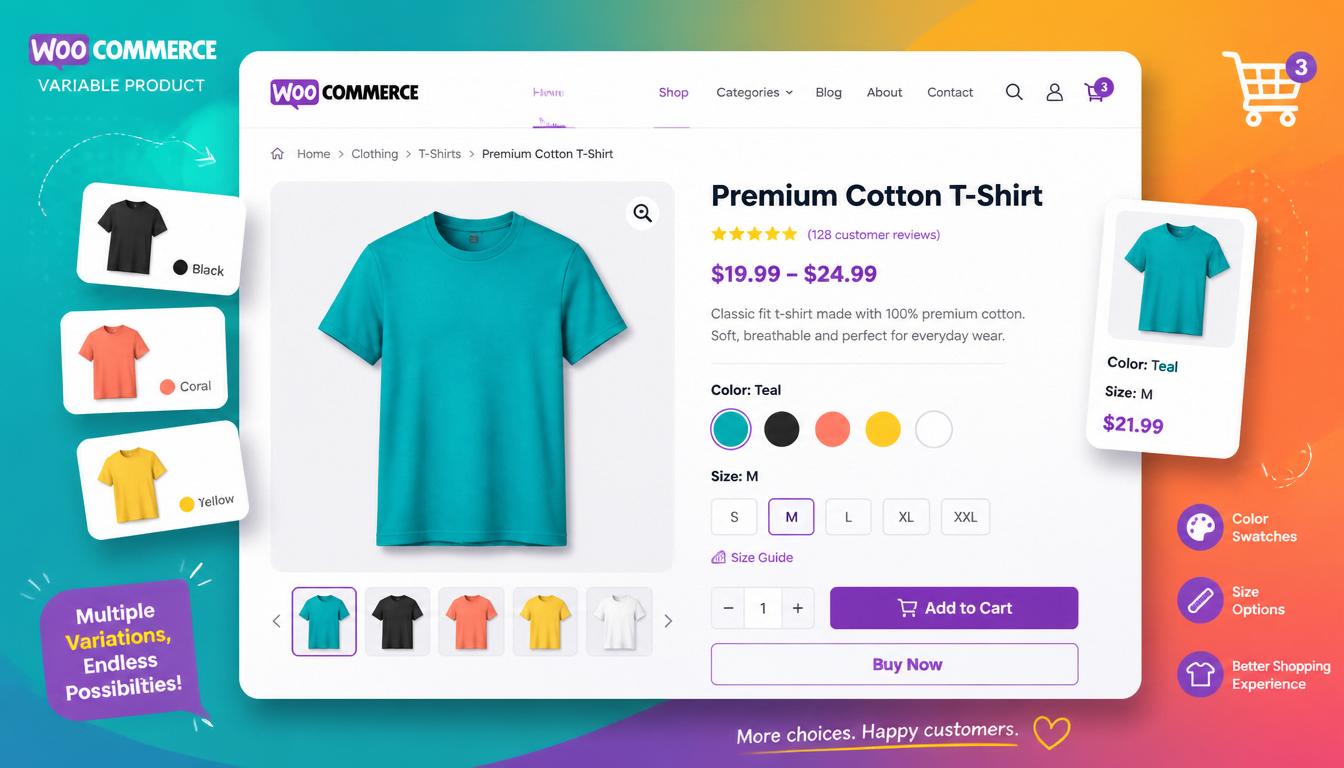
Variable products are one of WooCommerce’s most powerful features — and one of the most commonly misconfigured. Get them right and you have a clean, professional product page where customers choose their size, colour, or specification and the price, stock level, and image update automatically. Get them wrong and you end up with confusing dropdowns, missing prices, or inventory chaos.
This guide covers everything: setting up attributes, creating variations, managing stock per variation, pricing strategies, performance considerations, and the most common mistakes to avoid.
WooCommerce variable products guide 2026
What Is a Variable Product in WooCommerce?
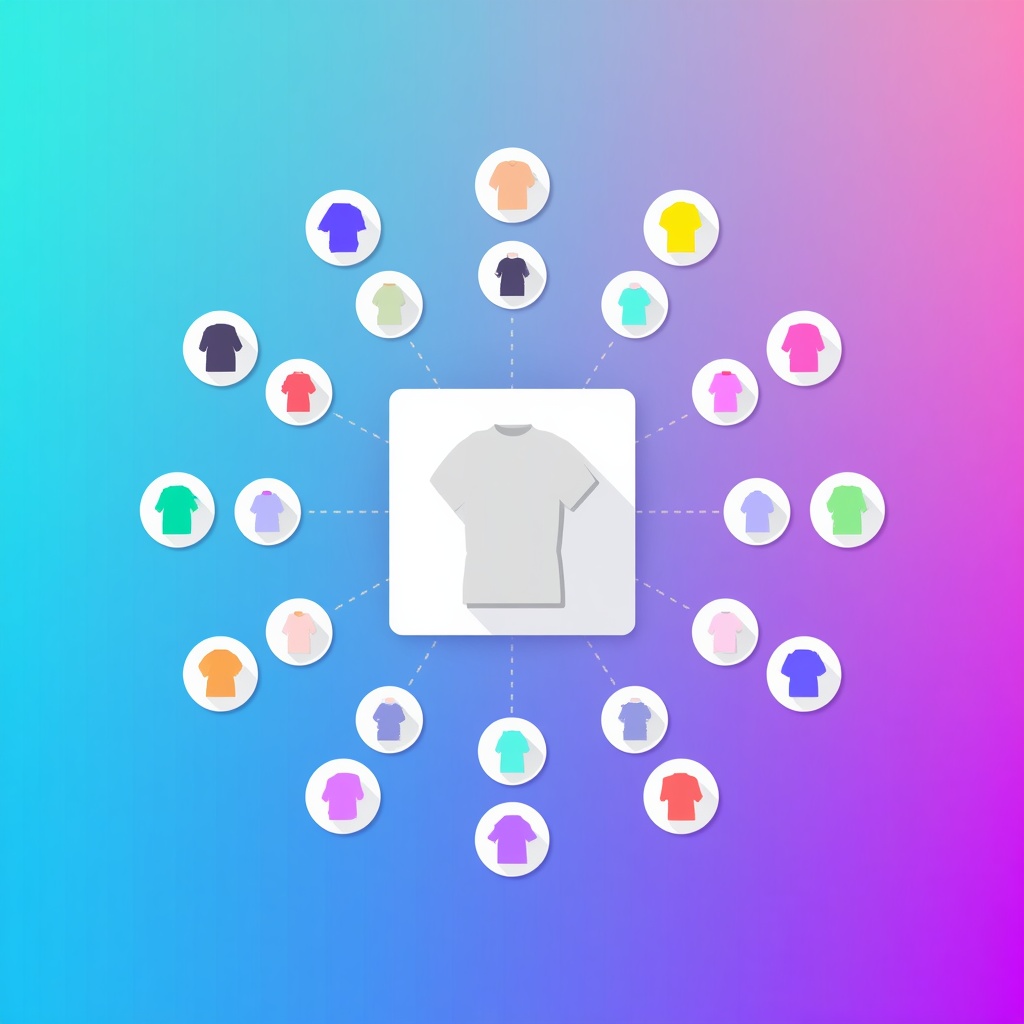
A variable product is a single product listing that contains multiple purchasable variations. Each variation is a unique combination of attributes — for example, a jumper that comes in three sizes (S, M, L) and four colours (Navy, Grey, Black, Green) has 12 possible variations.
Each variation can have its own:
- Price (regular and sale)
- SKU
- Stock quantity
- Weight and dimensions
- Image
- Downloadable files (for digital variable products)
Variable products keep your catalogue clean — one URL per product rather than a separate page for every size/colour combination — while giving customers the flexibility to choose exactly what they want.
Global Attributes vs Custom Attributes
Before creating your first variable product, you need to understand the difference between global and custom attributes — this is the decision most store owners get wrong at the start.
| Global Attributes | Custom Attributes | |
|---|---|---|
| Defined under | Products → Attributes | Per product, in the Attributes tab |
| Reusable across products | ✅ Yes | ❌ No |
| Works with layered navigation / filtering | ✅ Yes | ❌ No |
| Best for | Size, colour, material — anything used across multiple products | One-off attributes unique to a single product |
| SEO benefit | Enables faceted navigation, better crawl efficiency | None |
Use global attributes for anything you’ll reuse. If you sell clothing, create global PA_Size and PA_Colour attributes before adding a single variable product. This enables the WooCommerce layered navigation widget (shop filtering by size/colour) and makes bulk management far easier. Custom attributes are fine for one-off specifications but contribute nothing to filtering.
Setting Up Global Attributes
- Go to Products → Attributes in your WordPress dashboard
- Enter a Name (e.g. “Size”) and a Slug (e.g. “size”) — the slug is used in filter URLs
- Under Type, choose Select (standard dropdown) — or install a variation swatches plugin to enable colour pickers and image swatches instead
- Click Add attribute
- Click Configure terms next to your new attribute
- Add each term: XS, S, M, L, XL, XXL — give each a sensible slug and optionally a description
- Set the display order by dragging terms into the right sequence — this controls the order options appear in dropdowns on the frontend
Repeat for each global attribute (Colour, Material, etc.) before building your variable products.
Creating a Variable Product: Step by Step
- Go to Products → Add New
- Enter your product title, long description, and short description as you would for any product
- In the Product Data panel, select Variable product from the dropdown — the panel changes to show Attributes and Variations tabs
- Go to the Attributes tab
- Select your global attribute from the dropdown (e.g. “Size”) and click Add
- Under Value(s), add the specific terms that apply to this product (not every size you’ve ever created — just the ones this product comes in)
- Check Visible on the product page and Used for variations
- Click Save attributes
- Repeat for additional attributes (e.g. Colour)
- Go to the Variations tab
- From the dropdown, select Create variations from all attributes and click Go — WooCommerce generates every combination
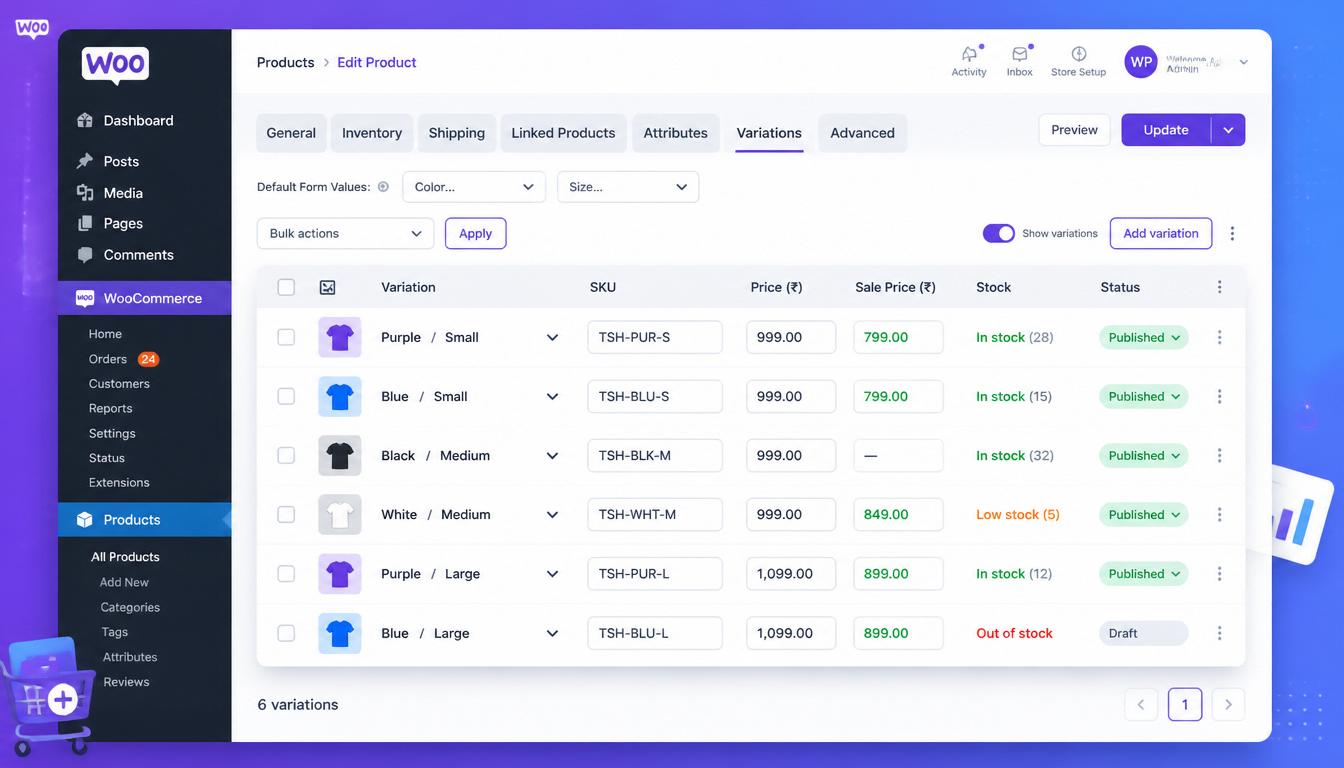
- Set a price, SKU, and stock quantity for each variation
- Click Save changes
- Add your main product image and product gallery, then click Publish
WooCommerce variable product variations setup
Managing Variations: Pricing, Stock, and Images
Pricing Variations
You must set a price on at least one variation, or WooCommerce will hide the product price on the frontend and the Add to Cart button won’t appear. Options:
- Same price for all variations — use “Set regular price for all variations” from the bulk actions dropdown to apply one price across everything
- Different prices per variation — expand each variation individually and set its own price. Common for clothing where larger sizes cost more, or for products where different specifications have different costs
- Sale prices per variation — can be set individually or in bulk; supports scheduled sale dates
Stock Management per Variation
Enable stock management at the variation level (rather than the parent product level) for accurate inventory tracking. Each variation gets its own stock quantity, low stock threshold, and backorder setting.
When a variation sells out, WooCommerce greys it out in the dropdown rather than removing the product from the shop — important for UX and for maintaining the product’s SEO value while a variant is temporarily unavailable.
Variation Images
Each variation can have its own image that replaces the main product photo when that variant is selected. This is particularly important for colour variations — customers expect to see the actual colour they’ve selected, not always the first image in the gallery.
To set a variation image: expand the variation, click the image placeholder on the left, and upload or select from the media library. A variation without its own image falls back to the main product image.
Variation Swatches: Beyond Dropdowns
WooCommerce’s default variation selector is a text dropdown. For attributes like colour or size, a visual swatch interface is significantly better for UX and conversion rate. Several plugins replace the dropdown with clickable buttons, colour pickers, or image swatches:
- Variation Swatches for WooCommerce — free, widely used, works with global attributes
- YITH WooCommerce Color and Label Variations — more configuration options, premium version available
- Variation Swatches and Photos — supports image swatches alongside colour swatches
Swatches are worth implementing for any store selling products where visual differentiation matters — clothing, homeware, accessories, paint, flooring. Expected impact: 5–15% increase in conversion rate compared to standard dropdowns.
SEO Considerations for Variable Products
Variable products present a specific SEO consideration: should each variation have its own URL, or should all variations share the parent product URL?
WooCommerce’s default behaviour is to use the parent product URL for all variations, with the selected attributes passed as URL parameters (?attribute_pa_colour=navy&attribute_pa_size=medium). These parameter URLs are not indexed by default, which is usually correct — you don’t want 12 near-identical pages competing against each other for the same keywords.
The exception is when specific variations have significantly different search demand. If “navy merino jumper” and “grey merino jumper” are both high-volume searches with distinct intent, separate product pages (simple products rather than variations) may perform better in search than a single variable product page. This is a judgement call based on keyword research.
For most stores, the right approach is one well-optimised variable product page per product, with the SEO title and description targeting the broadest relevant keyword. See our WooCommerce SEO guide for the full picture on product page optimisation.
Performance: Variable Products and Page Speed
Variable products with many variations can slow down product pages. WooCommerce loads all variation data as a JSON object in the page source — a product with 50 variations loads substantially more data than one with 5. With 100+ variations, this becomes a measurable performance problem.
Performance thresholds:
- 0–30 variations: No issues, instant variation switching
- 30–100 variations: Noticeable but acceptable; page load may increase by 200–500ms
- 100–500 variations: Significant impact; recommend Ajax loading
- 500+ variations: Not recommended; consider splitting into multiple products
Solutions:
- Ajax variation loading — plugins like WooCommerce Variation Gallery load variation data on demand rather than all at once
- Limit variation combinations — if you have 200 variations but only 40 are actually purchasable, consider deactivating impossible combinations rather than leaving them as “Out of stock”
- WooCommerce threshold setting — under WooCommerce → Settings → Products, the “Ajax add to cart on archives” setting and variation thresholds can be adjusted for large catalogues
- Target page load: Keep product pages under 2.5 seconds LCP (Largest Contentful Paint) even with variations enabled
For general WooCommerce performance optimisation, the stack of WP Rocket + Cloudflare + managed hosting handles most stores well — see our best WooCommerce plugins guide for the full recommended setup. For the basics of adding products, see our how to add products to WooCommerce guide.
Pro Tip: Set up your global attributes before you create any variable products, not after. Migrating products from custom attributes to global attributes retrospectively is painful and time-consuming. Five minutes planning your attribute structure at the start saves hours of rework later.
Common Variable Product Mistakes
| Mistake | Result | Fix |
|---|---|---|
| No price set on any variation | Product shows no price, Add to Cart missing | Set price on at least one variation |
| Using custom attributes instead of global | Filtering doesn’t work, attributes can’t be reused | Delete and recreate as global PA_ attributes |
| Not checking “Used for variations” | Attribute appears in info tab but not as a selector | Edit attribute, check the checkbox, save |
| Forgetting variation images | Wrong colour shows in product image when variant selected | Upload per-variation images for colour attributes |
| Too many variations (>100) | Slow product page (>3s load), poor UX | Ajax loading or reduce variation count |
| Stock managed at product level only | Individual sizes/colours can’t be tracked | Enable stock management per variation |
| No variation has stock | Product appears out of stock | Set stock quantity on at least one variation |
Frequently Asked Questions
How many variations can a WooCommerce product have?
There’s no hard limit, but WooCommerce’s admin interface shows a warning at 50 variations and performance degrades noticeably above 100. The default frontend threshold for loading variation data is also 30 — above this, customers may need to select attributes before prices and availability show. For large catalogues, Ajax variation loading is the solution.
Can I set different prices for different variations?
Yes — expand each variation in the Variations tab and set individual regular and sale prices. You can also use bulk actions to set the same price increase or decrease across all variations at once (e.g. “Increase regular prices by 10%”).
How do I add a new size or colour to an existing variable product?
Go to the product’s Attributes tab, add the new term to the relevant attribute, save, then go to the Variations tab and either manually add the new variation or use “Create variations from all attributes” again (this adds missing combinations without deleting existing ones). Set the price and stock for the new variation and save.
This usually means all variations are set to Out of stock, or no variations have a price set. Check the Variations tab — each variation needs a status (In stock/Out of stock) and at least one variation needs a price. Also check that the product itself is Published, not Draft.
Can I use variable products for digital downloads?
Yes — check the Downloadable checkbox in the Product Data panel. Each variation can have its own downloadable file, useful for products like software that comes in different licence tiers (Personal, Business, Developer) with different file packages or download limits per tier.
How do I bulk edit WooCommerce variable product prices?
In the Variations tab, use the bulk actions dropdown at the top of the variations list. Options include setting a fixed price, increasing or decreasing prices by a percentage or fixed amount, and toggling sale prices. For cross-product bulk editing, use the Products list view and the bulk edit feature — though this only edits the parent product, not individual variation prices.
Variable products are one part of a healthy catalogue. Our main WooCommerce guide covers the rest — setup, SEO, plugins, security and scaling.

With over two decades of web design and development expertise, I craft bespoke WordPress solutions at FallingBrick, delivering visually striking, high-performing websites optimised for user experience and SEO.