Setting up WooCommerce for the first time is straightforward if you know the right order to do things. The plugin itself installs in minutes, but a store that’s actually ready to take orders — with proper payment configuration, shipping rules, tax settings, and a functional product catalogue — takes longer and requires attention to detail.
This guide walks through the entire process from a fresh WordPress installation to a live, properly configured WooCommerce store, in the correct sequence.
How to set up WooCommerce step by step
Before You Start: What You Need
Before installing WooCommerce, make sure you have:
- A WordPress site — WooCommerce is a WordPress plugin; it won’t run without WordPress
- Reliable hosting — shared hosting works for small stores but managed WordPress hosting (Cloudways, Kinsta, WP Engine) delivers significantly better performance
- A domain name — registered and pointing to your hosting
- SSL certificate — required for any store taking payments. Most hosts include this free via Let’s Encrypt
- A payment gateway account — Stripe and/or PayPal are the most common choices for UK stores
If you’re deciding between WooCommerce and a hosted platform before committing, see our WooCommerce vs Shopify comparison first.
Step 1: Install WooCommerce
- Log into your WordPress dashboard
- Go to Plugins → Add New
- Search for “WooCommerce”
- Click Install Now on the WooCommerce plugin by Automattic
- Click Activate
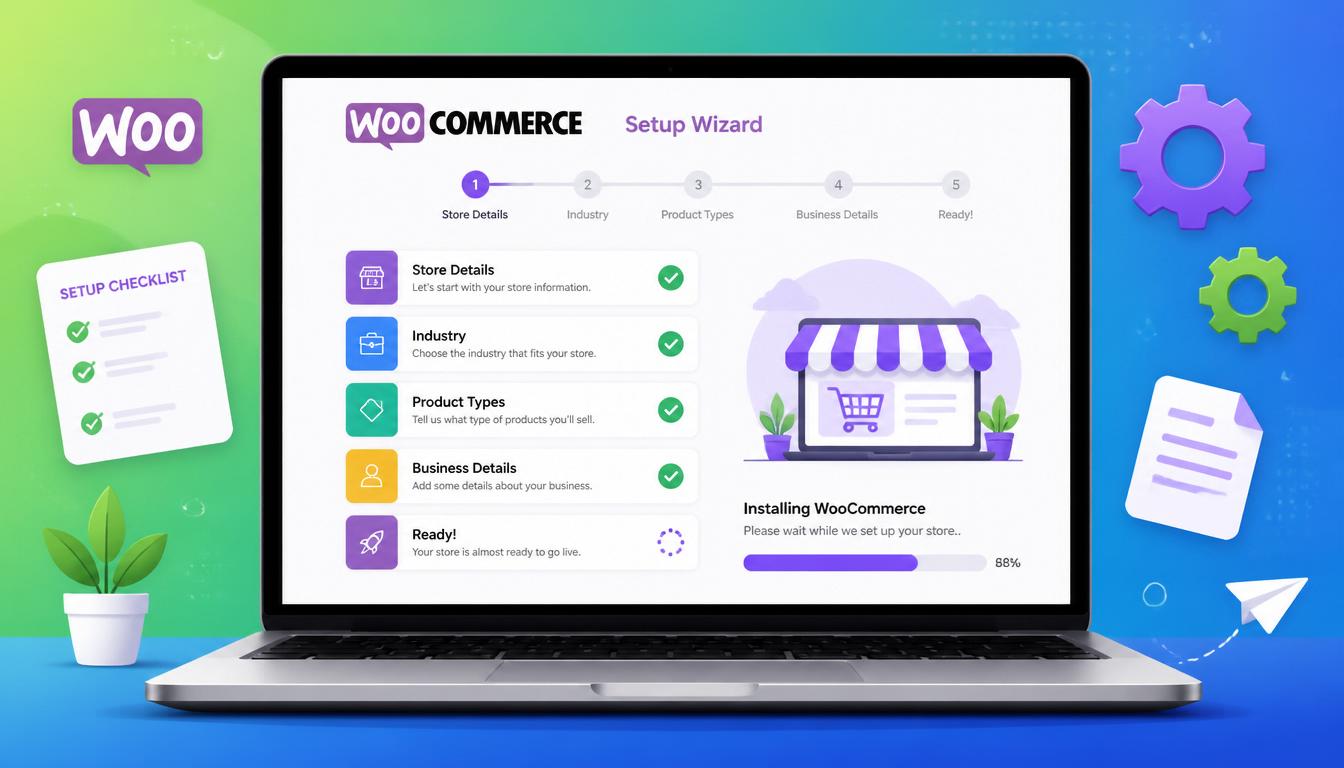
WooCommerce will prompt you to run the Setup Wizard — do this, as it configures the essential settings in one go.
Step 2: Run the Setup Wizard
The WooCommerce Setup Wizard walks you through the core configuration. It covers:
- Store details — address, country, and region (used for tax calculations and default currency)
- Industry — select the category that best describes your store
- Product types — physical, digital, subscriptions, etc.
- Business details — how many products you plan to sell, whether you’re currently selling elsewhere
- Theme selection — you can skip this if you already have a theme installed
Complete the wizard, then move on to manual configuration of the settings it doesn’t cover.
Step 3: Configure General Settings
Go to WooCommerce → Settings → General:
- Store address — your business address; used for tax calculations
- Selling locations — whether you ship worldwide, to specific countries only, or UK only
- Default customer location — “Geolocate” is recommended; shows customers prices with correct tax applied for their location
- Enable taxes — tick this if you’re VAT registered or need to apply any tax
- Currency — set to GBP for UK stores
- Currency position — Left (£100) is standard for UK
Click Save changes.
Step 4: Configure Tax Settings
If you ticked “Enable taxes” in General, a Tax tab now appears in WooCommerce Settings.
Go to WooCommerce → Settings → Tax:
- Prices entered with tax — choose “Yes, I will enter prices inclusive of tax” if you want to enter £120 and have WooCommerce display £120 (with £20 VAT included). Choose “No, I will enter prices exclusive of tax” if you want to enter £100 and have WooCommerce calculate and add 20% VAT automatically. Most UK retail stores use inclusive pricing.
- Calculate tax based on — “Customer shipping address” is correct for most stores
- Shipping tax class — “Shipping tax class based on cart items” handles most scenarios correctly
- Display prices in the shop — “Including tax” for UK retail stores
- Display prices during cart and checkout — “Including tax”
Then go to the Standard Rates tab and add UK VAT:
- Click Insert row
- Set Country code: GB, State: leave blank, Postcode/ZIP: leave blank, City: leave blank, Rate: 20.0000, Tax name: VAT, Priority: 1, Compound: unticked, Shipping: ticked
- Click Save changes
If you’re not VAT registered, skip the tax configuration entirely and leave “Enable taxes” unticked.
Step 5: Configure Shipping
Go to WooCommerce → Settings → Shipping.
WooCommerce uses Shipping Zones — geographic areas with their own shipping methods and rates.
- Click Add shipping zone
- Name it (e.g. “United Kingdom”)
- Under Zone regions, add “United Kingdom”
- Click Add shipping method and choose from:
- Flat rate — a fixed charge regardless of order contents
- Free shipping — can be set to activate above a minimum order amount
- Local pickup — for click-and-collect
- Click Save changes
For real-time carrier rates (Royal Mail, DPD, Hermes), you’ll need a dedicated shipping plugin. See our best WooCommerce plugins guide for shipping plugin recommendations.
Add a separate zone for international shipping if you ship outside the UK, with its own rates.
Step 6: Set Up Payments
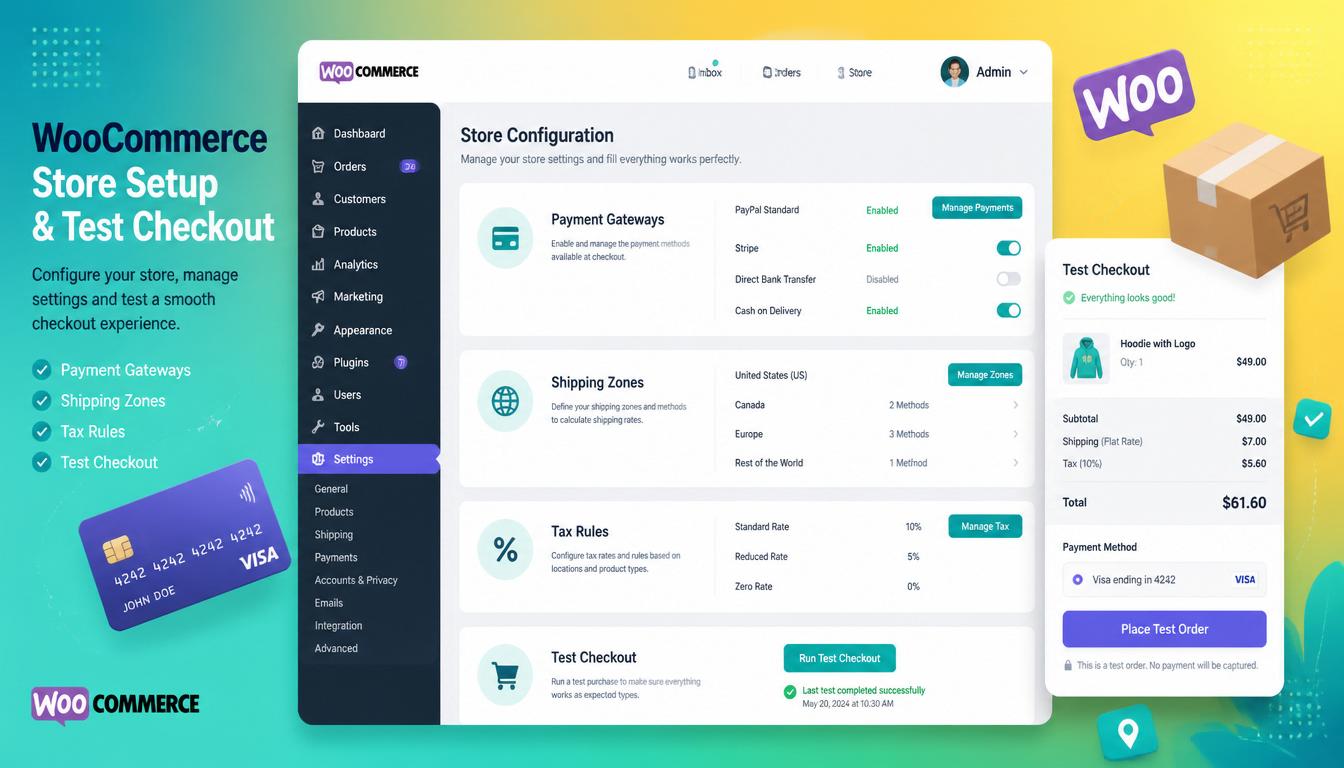
Go to WooCommerce → Settings → Payments.
WooCommerce includes basic payment options (bank transfer, cheque, cash on delivery) by default. For card payments, you need to install a payment gateway plugin.
Stripe (Recommended)
- Go to Plugins → Add New and search for “WooCommerce Stripe Payment Gateway”
- Install and activate
- Go to WooCommerce → Settings → Payments → Stripe
- Enable Stripe and click Set up
- Connect your Stripe account (or create one at stripe.com)
- Enable Apple Pay and Google Pay in the Stripe settings — these increase mobile conversion rate at no extra cost
PayPal
- Search for “WooCommerce PayPal Payments” in Plugins → Add New
- Install, activate, and connect your PayPal Business account
Both Stripe and PayPal can run simultaneously — a meaningful portion of UK shoppers prefer PayPal at checkout, particularly on mobile.
Step 7: Add Your Products
Go to Products → Add New. For a full walkthrough of every product type and configuration option, see our dedicated guide on how to add products to WooCommerce.
At minimum, each product needs:
- A descriptive title
- A price
- A product image
- A category
- A description (short and long)
Before adding products, set up your category structure under Products → Categories. A clean category hierarchy from the start is much easier than reorganising after hundreds of products are live.
Step 8: Configure Your Store Pages
WooCommerce automatically creates four essential pages during setup:
- Shop — the main product listing page
- Cart — the basket page
- Checkout — where payment is taken
- My Account — customer login and order history
Verify these exist under Pages and that they contain the correct WooCommerce shortcodes ([woocommerce_cart], [woocommerce_checkout], etc.). If they’re missing, create them manually and assign them under WooCommerce → Settings → Advanced → Page setup.
Add links to Cart and My Account in your site navigation. Most themes have a cart icon option in the header — enable this if available.
Step 9: Install Essential Plugins
A bare WooCommerce install needs a few supporting plugins to function properly as a real store:
- Rank Math Pro — SEO, product schema, meta titles and descriptions
- WP Rocket — caching and performance (with WooCommerce-specific exclusion rules built in)
- Wordfence — security and malware scanning
- ShortPixel or Imagify — image optimisation and WebP conversion
For a full recommended plugin stack, see our guide on the best WooCommerce plugins.
WooCommerce store setup complete
Step 10: Test Before Going Live
Before announcing your store, run through this checklist:
- Place a test order using Stripe’s test card (4242 4242 4242 4242) — verify the full checkout flow works
- Check order confirmation email arrives and looks correct
- Verify SSL is active — padlock shows in browser, URL starts with https://
- Test on mobile — checkout is usable on a small screen
- Verify shipping rates calculate correctly at checkout
- Check tax is applied correctly for UK customers
- Submit your sitemap to Google Search Console
- Verify cart, checkout, and account pages are set to noindex in your SEO plugin
- Set up Google Analytics 4 with WooCommerce purchase tracking
- Check all product images load correctly and have alt text
Pro Tip: Don’t skip the test order step. A surprising number of stores go live with a broken checkout — wrong currency, missing shipping options, tax not calculating, or payment gateway in test mode. Run the full purchase flow yourself, on both desktop and mobile, before sending any traffic to the store.
Common WooCommerce Setup Mistakes
| Mistake | Consequence | Fix |
|---|---|---|
| Using shared hosting | Slow store, especially under load | Move to managed WordPress hosting |
| No caching plugin | Every page request hits the server; slow load times | Install WP Rocket immediately after WooCommerce |
| Payment gateway left in test mode | Real customers can’t complete purchases | Switch to live mode and test with a real £1 order |
| No SSL certificate | Browser security warning, no payment processing, Google ranking penalty | Enable Let’s Encrypt SSL via your host’s control panel |
| Cart and checkout pages indexed by Google | Wasted crawl budget, irrelevant search results | Set noindex on cart, checkout, account, order-received pages |
| No product descriptions | Thin content, poor SEO, lower conversion rate | Write unique descriptions for every product |
Frequently Asked Questions
How long does it take to set up WooCommerce?
A basic WooCommerce install with a small number of products can be live in a day. A properly configured store with custom design, comprehensive product catalogue, shipping integrations, and SEO setup typically takes 1–4 weeks depending on complexity. Rushing the setup to launch quickly usually creates problems that are more expensive to fix later than they would have been to get right initially.
Do I need a developer to set up WooCommerce?
Not for a basic store — the setup wizard and plugin interfaces are designed for non-developers. For custom design, complex shipping or payment configuration, performance optimisation, or integration with external systems (ERP, CRM, stock management), developer involvement saves significant time and prevents costly mistakes. See our WordPress development service if you need professional setup.
What hosting should I use for WooCommerce?
Managed WordPress hosting is the right choice for any store that’s serious about performance. Cloudways offers excellent flexibility and value — you choose your cloud provider (DigitalOcean, AWS, Google Cloud) and server size, with one-click WordPress/WooCommerce installation and built-in caching. Kinsta and WP Engine are premium alternatives with excellent support. Avoid shared hosting for any store generating meaningful revenue — it’s a false economy.
Is WooCommerce secure?
WooCommerce itself is secure and regularly updated. The risk comes from outdated plugins, weak passwords, and unpatched WordPress core — the same risks that affect any WordPress site. Install Wordfence, keep everything updated, use strong passwords, enable two-factor authentication on your admin account, and take regular backups. These steps cover the vast majority of real-world attack vectors.
How do I add WooCommerce to an existing WordPress site?
Install and activate the WooCommerce plugin from Plugins → Add New, run the setup wizard, and configure settings as described in this guide. WooCommerce adds its shop, cart, checkout, and account pages automatically. The main consideration for an existing site is theme compatibility — verify your current theme’s WooCommerce template support before installing, as some themes require additional configuration or template files to display WooCommerce pages correctly.
Setup is just the beginning — a live store needs ongoing attention. Our complete WooCommerce guide takes you from install through to scaling. Once your store is running, the next priority is locking it down: see our WooCommerce security checklist. Setting up a store is one cost; running it is another — see how much a website costs in the UK for build and ongoing expenses.

With over two decades of web design and development expertise, I craft bespoke WordPress solutions at FallingBrick, delivering visually striking, high-performing websites optimised for user experience and SEO.