Upselling and cross-selling are two of the highest-return tactics available to any e-commerce store. They cost nothing in ad spend, require no new traffic, and work on customers who are already in buying mode. Done well, they increase average order value (AOV) by 10–30% without being pushy. Done poorly, they annoy customers and get ignored.
This guide covers how WooCommerce handles upsells and cross-sells natively, where each appears, how to configure them, and which plugins take the whole thing to a more automated, higher-converting level.
WooCommerce upsell and cross-sell guide 2026
Upsell vs Cross-Sell: What’s the Difference?
| Upsell | Cross-sell | |
|---|---|---|
| Definition | A better or more expensive version of what the customer is viewing | A complementary product that works with what they’re buying |
| Where it appears in WooCommerce | Product page (“You may also like…”) | Cart page (“You might also like…”) |
| Example | Viewing a basic laptop stand → shown a premium adjustable version | Adding a laptop to cart → shown a laptop stand and carry case |
| Goal | Increase the value of the item purchased | Add additional items to the order |
| Typical AOV impact | 10–20% increase | 15–30% increase |
WooCommerce also has a third related concept: Related Products. These are automatically generated from shared categories and tags — WooCommerce picks them without any manual input. They appear on the product page below the upsells section. Related products are useful as a fallback but shouldn’t be relied on as a revenue strategy — manual upsells and cross-sells consistently outperform automatic related products because they’re intentional.
How to Set Up Upsells in WooCommerce
- Go to Products → All Products and open the product you want to configure
- Scroll to the Product Data panel and click the Linked Products tab
- In the Up-sells field, start typing the name of the product you want to suggest — WooCommerce searches your catalogue as you type
- Select the product from the dropdown
- Add as many upsell products as relevant — WooCommerce displays up to 4 by default (configurable via theme or plugin)
- Click Update
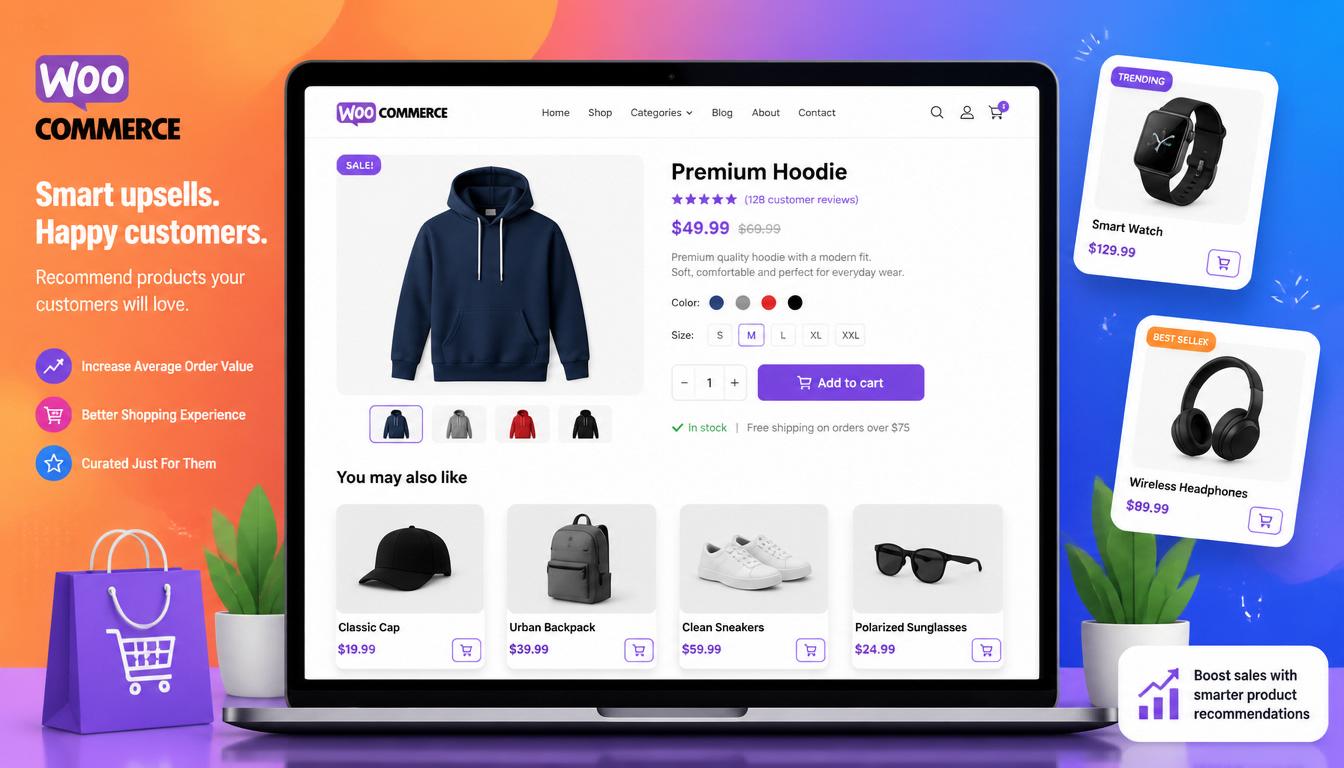
The upsells appear on the product page in the “You may also like…” section, below the product description. The exact position and styling depends on your theme.
What makes a good upsell?
- A clear upgrade path — premium version, larger size, better specification
- Higher price, but not dramatically so — typically 10–40% more expensive than the viewed product
- Obvious value difference — the customer should immediately understand why the upsell costs more
- Measurable target: Aim for an acceptance rate of 5–15%. If it’s below 3%, the upsell is too expensive or unclear. If it’s above 20%, it’s probably too cheap and you’re leaving money on the table.
How to Set Up Cross-Sells in WooCommerce
- Open the product in the admin
- Go to the Linked Products tab in Product Data
- In the Cross-sells field, search and select the complementary products
- Click Update
Cross-sells appear on the cart page, shown to the customer after they’ve added the product to their basket. This is a high-intent moment — the customer has committed to buying, and showing them something genuinely useful alongside their existing selection is the least intrusive way to increase order value.
What makes a good cross-sell?
- Genuinely complementary — things that are logically used together
- Lower or similar price to the main product — a £10 accessory cross-sold with a £80 product is easy to add; a second £80 product is a harder sell
- Solves a problem the customer might not have considered — “customers who bought this also needed…”
- Price ratio: Best results come from cross-sells priced at 15–35% of the main product’s value. For a £100 product, aim for cross-sells in the £15–£35 range.
Related Products: Controlling What WooCommerce Shows
WooCommerce’s automatic related products are pulled from products that share the same categories or tags as the current product. If your categorisation is messy, related products will be random and unhelpful.
To control related products without a plugin, the simplest approach is to use tags deliberately — tag products that genuinely complement each other with a shared tag, and WooCommerce will surface them together. This is a blunt instrument but works reasonably well for small catalogues.
To hide related products entirely and replace them with manually curated upsells, add this to your theme’s functions.php or a code snippet plugin:
remove_action( 'woocommerce_after_single_product_summary', 'woocommerce_output_related_products', 20 );This removes the automatic section, leaving only your manually set upsells visible — a cleaner result for most stores.
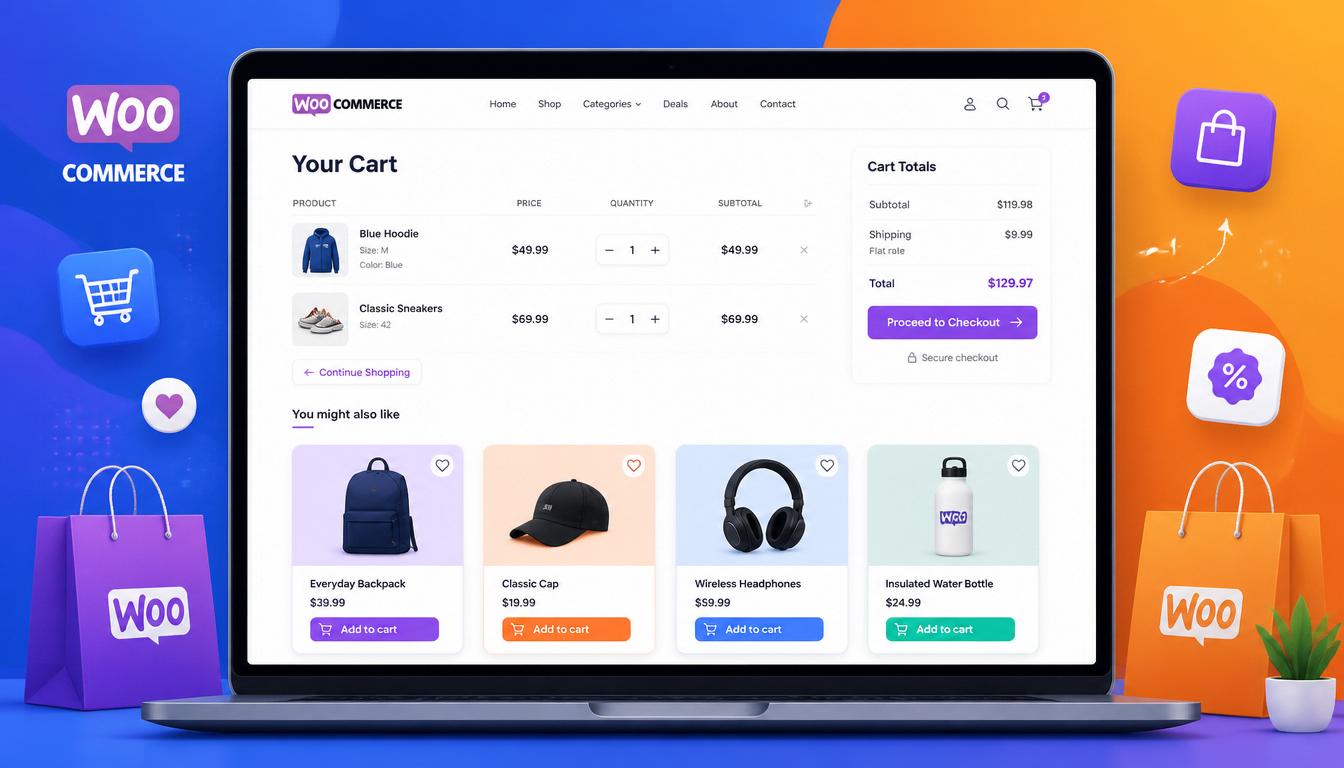
WooCommerce cross-sell products on cart page
Plugins That Take Upselling Further
WooCommerce’s built-in upsell and cross-sell functionality is manual and limited — you set it product by product, and the display is basic. For stores where AOV is a meaningful metric, dedicated plugins do significantly more.
CartFlows
CartFlows replaces the standard WooCommerce checkout with a customisable funnel that includes one-click upsells (post-purchase, no re-entering card details), order bumps (checkbox additions at checkout), and A/B testing. Post-purchase upsells in particular are highly effective — the customer has already committed and entering payment details again is not required.
- Cost: Free / Pro from £239/year
- Best for: Post-purchase upsells, order bumps, checkout optimisation
- Typical performance: Order bumps converting at 15–35%, post-purchase upsells at 10–25%
WooCommerce Product Recommendations
The official WooCommerce Product Recommendations plugin uses purchase history and browsing behaviour to generate automated recommendations — “Frequently Bought Together”, “Recently Viewed”, “Best Sellers in this Category”. More sophisticated than manual cross-sells and scales without manual maintenance.
- Cost: £79/year
- Best for: Automated recommendations, large catalogues
YITH WooCommerce Frequently Bought Together
YITH Frequently Bought Together displays a bundle of products on the product page with a single “Add all to cart” button — directly modelled on Amazon’s approach. Simple concept, proven conversion impact for stores where complementary products are obvious.
- Cost: Free / Pro from £79.99/year
- Best for: Bundle-style cross-sells, single Add to Cart for multiple items
- Typical uplift: 10–25% increase in AOV for stores with clear product pairings
Klaviyo
Klaviyo extends upselling beyond the on-site experience into email — post-purchase sequences that recommend complementary products based on what the customer actually bought, timed to when they’re likely to need a refill or accessory. Email-based cross-selling often outperforms on-site cross-selling for repeat purchase categories.
- Cost: Free up to 250 contacts / paid from ~£15/month
- Best for: Post-purchase email sequences, replenishment reminders, repeat buyers
Order Bumps: The Checkout Cross-Sell
An order bump is a checkbox offer shown at the checkout — “Add [product] for just £X” — that customers can accept with a single click without leaving the checkout flow. It’s one of the highest-converting cross-sell placements because the customer is already in payment mode.
WooCommerce doesn’t support order bumps natively. CartFlows Pro and WooCommerce Checkout Add-Ons both implement this. Effective order bumps are low-cost, obviously relevant, and require no decision — gift wrapping, extended warranty, a complementary consumable.
Order bump benchmarks:
- Optimal price point: 10–25% of cart value
- Target conversion: 20–40% (above 40% = too cheap, below 10% = unclear offer)
- Best performers: Extended warranties, gift wrapping, consumable accessories
Measuring Upsell and Cross-Sell Performance
To know whether your upsells and cross-sells are working, you need to track Average Order Value over time and identify which product pairings are generating additional revenue. WooCommerce’s built-in analytics shows AOV under Analytics → Overview, but doesn’t break down which linked products are contributing.
For proper attribution:
- Metorik — shows product pairing data, cohort AOV, and which products are frequently bought together based on actual order history (not guesswork)
- Google Analytics 4 with WooCommerce integration — tracks add-to-cart events and purchase paths, letting you see where in the funnel additional items are being added
- CartFlows analytics — if you’re using CartFlows, its built-in reporting shows upsell acceptance rates and revenue attributed to each offer
Pro Tip: Start with cross-sells on your top 10 best-selling products before trying to configure everything at once. Pick the most obvious complementary item for each, set them up, and measure AOV over 30 days. Target: increase AOV by 10–15% within the first quarter. This gives you a baseline and proves the concept before you invest time in a full catalogue rollout or plugin purchase.
Upsells, Cross-Sells and SEO: The Internal Linking Benefit
Beyond revenue, upsells and cross-sells create valuable internal links between product pages. This helps Google understand product relationships and distributes page authority across your catalogue. For SEO purposes:
- Each upsell/cross-sell is a contextual internal link with relevant anchor text (the product title)
- Links from high-traffic product pages pass more authority to linked products
- A well-structured upsell network helps Google discover and index deeper product pages
For the full picture on how internal linking fits into WooCommerce SEO, see our WooCommerce SEO guide. For automated discount rules and bulk pricing, see our guide to WooCommerce discount plugins.
Frequently Asked Questions
Upsells are manually curated products you set per-product under Linked Products — they show on the product page and represent deliberate upgrade suggestions. Related products are automatically generated by WooCommerce from shared categories and tags — no manual curation required, but less targeted. Upsells take priority over related products; if you set upsells, WooCommerce shows those instead of auto-related products.
Where do cross-sells appear in WooCommerce?
Cross-sells appear on the cart page, shown to customers after they’ve added a product to their basket. They don’t appear on the product page — that’s where upsells go. This separation is intentional: upsells influence what the customer buys, cross-sells influence what else they add to an existing purchase.
How many upsells or cross-sells should I add per product?
Two to four is the standard recommendation. Too few and you’re leaving opportunities on the table; too many and the section becomes overwhelming and gets ignored. Quality matters more than quantity — one genuinely relevant suggestion outperforms five loosely related ones.
Can I automate upsells and cross-sells in WooCommerce?
Yes, with plugins. WooCommerce Product Recommendations uses purchase history to generate automated suggestions. Klaviyo handles post-purchase email cross-sells automatically based on what customers bought. For on-site automation without manual product linking, these are significantly more scalable than WooCommerce’s built-in linked products feature.
Do upsells and cross-sells affect SEO?
Indirectly, yes. Upsell and cross-sell sections create internal links between product pages, which distributes page authority and helps Google understand product relationships. More directly, increasing AOV improves revenue per visitor — which means your existing traffic is worth more without any additional SEO work. See our WooCommerce SEO guide for how internal linking fits into a broader optimisation strategy.
What is a post-purchase upsell and how do I add one to WooCommerce?
A post-purchase upsell appears on the order confirmation page after payment is complete — the customer can accept an additional offer without re-entering their payment details. WooCommerce doesn’t support this natively; CartFlows Pro is the most capable implementation for WooCommerce. Post-purchase upsells typically have higher acceptance rates (15–30%) than pre-purchase upsells because purchase anxiety has already been resolved.
Upsells and cross-sells sit inside a bigger conversion strategy. Our comprehensive WooCommerce guide connects the dots.

With over two decades of web design and development expertise, I craft bespoke WordPress solutions at FallingBrick, delivering visually striking, high-performing websites optimised for user experience and SEO.