Is your WordPress site struggling with slow loading times in 2026? Website performance has never mattered more — Google ranks faster sites higher, users abandon pages that take over 3 seconds to load, and every second of delay costs you conversions. A slow website doesn’t just frustrate visitors; it actively hands business to your competitors.
This guide covers the most effective ways to increase WordPress speed in 2026, from hosting choices and caching to images, code and ongoing monitoring.
Increase WordPress Speed in 2026
Why Increasing WordPress Speed Matters More in 2026
Website speed is no longer simply a technical preference — it directly impacts SEO rankings, advertising performance, conversion rates and user trust.
- Core Web Vitals Influence Rankings: Google uses LCP, INP and CLS as direct ranking signals. Poor scores mean lower positions, regardless of content quality.
- Mobile Users Expect Instant Loading: Over 60% of web traffic now comes from mobile devices, many on variable connections. Speed matters more on mobile than anywhere else.
- Faster Sites Convert Better: A 1-second delay in load time can reduce conversions by 7%. For any site generating enquiries or sales, that adds up quickly.
- AI Search Prioritises Quality Experiences: Fast, accessible websites are more likely to perform well in AI-assisted search environments.
- Modern Themes and Builders Are Heavier: Page builders, sliders and feature-heavy themes load more code than ever. Without active optimisation, sites become bloated fast.
Now let’s look at the most effective ways to improve WordPress speed in 2026.
1. Choose Performance-Focused WordPress Hosting
Hosting is the single biggest factor affecting WordPress performance. No amount of plugin-based optimisation fully compensates for a slow server. If your Time To First Byte (TTFB) is over 800ms, start here before anything else.
Modern managed WordPress hosting platforms include advanced caching layers, server-level optimisation and security protections designed specifically for WordPress.
| Host | Strengths | Considerations | Ideal For |
|---|---|---|---|
| Kinsta | Google Cloud infrastructure, exceptional speed, expert support | Premium pricing | Business websites, e-commerce |
| WP Engine | Excellent developer tools and staging environments | Higher learning curve | Agencies, growing businesses |
| Rocket.net | Built-in Cloudflare Enterprise integration | Higher monthly cost | Performance-focused websites |
If you’re still on shared hosting, moving to managed WordPress hosting is likely the single most impactful change you can make — worth the higher monthly cost for any serious site.
2. Use a CDN with Edge Caching
A Content Delivery Network (CDN) is now considered essential rather than optional. CDNs distribute your website assets globally and serve files from the server closest to each visitor — dramatically cutting latency regardless of where your hosting server is located.
Modern CDN platforms also provide:
- Edge caching
- DDoS protection
- Image optimisation
- Bot filtering
- Automatic compression
Popular CDN options in 2026 include:
- Cloudflare: Excellent all-round CDN with strong security and caching. The free tier is genuinely useful; the Pro tier adds image optimisation.
- Bunny.net: Extremely fast and affordable — popular with developers for its performance-to-price ratio.
- QUIC.cloud: Particularly effective with LiteSpeed servers.
Many high-performance hosts now include CDN integration by default. Check before paying separately.

Use a CDN with Edge Caching
3. Implement Advanced WordPress Caching
Caching is one of the highest-leverage optimisations available. Instead of WordPress rebuilding each page from scratch on every visit, caching serves pre-built versions — cutting server load and improving load times significantly. In 2026, most fast WordPress sites use multiple caching layers simultaneously.
Types of caching include:
- Page Caching: Generates static HTML versions of pages so the server doesn’t need to process PHP on every request.
- Object Caching: Saves database query results in memory using Redis or Memcached — essential for dynamic sites with lots of content.
- Browser Caching: Instructs visitors’ browsers to store static assets locally, speeding up repeat visits.
- Edge Caching: CDN-level full page delivery — the fastest option for returning visitors.
Recommended caching tools:
- WP Rocket: Still one of the easiest and most effective optimisation plugins. Handles caching, minification, lazy loading and CDN integration in one place.
- LiteSpeed Cache: Excellent for LiteSpeed hosting environments — free and very powerful.
- FlyingPress: Increasingly popular for modern performance optimisation, particularly strong on Core Web Vitals.
Proper caching configuration significantly improves Largest Contentful Paint (LCP) scores. Check with your host before installing a caching plugin — many managed hosts have their own caching layer that can conflict.
4. Optimise Images and Use Modern Formats
Images typically account for the largest share of a page’s total weight. Optimising them properly can dramatically reduce page size without any visible quality loss.
Modern image optimisation strategies include:
- Use WebP or AVIF: WebP is 25–35% smaller than JPEG at equivalent quality. AVIF goes even further — up to 50% smaller — and is now supported by all major browsers.
- Compress Images: Use tools like ShortPixel or Imagify to automatically compress on upload. Most plugins handle format conversion too.
- Resize Before Uploading: Never upload a 4000px image to display at 800px. Resize first.
- Enable Lazy Loading: WordPress has native lazy loading built in since v5.5. Make sure your theme isn’t disabling it.
- Serve Responsive Images: Deliver correctly sized images based on device width using srcset — WordPress generates these automatically.
Optimised images improve both load times and Core Web Vitals scores, particularly LCP and CLS (when image dimensions are set correctly).
5. Reduce JavaScript and Unused CSS
Modern WordPress themes and page builders often load excessive CSS and JavaScript — much of it not needed on every page. Reducing unnecessary assets is critical for improving Core Web Vitals, especially INP (Interaction to Next Paint).
Key optimisation methods:
- Minify CSS and JavaScript: Strip whitespace and comments from code without changing functionality.
- Delay Non-Critical JavaScript: Prevent render-blocking scripts by loading JS only after the main content renders.
- Remove Unused CSS: Eliminate styles not used on the page — WP Rocket’s “Remove Unused CSS” feature can cut stylesheet size dramatically.
- Limit Third-Party Scripts: Every analytics tag, chat widget and ad script adds weight. Audit regularly and remove what you don’t actively need.
Plugins like WP Rocket and Perfmatters automate much of this process. Test thoroughly after enabling — combining JS files can occasionally cause conflicts with page builders or WooCommerce.

Reduce JavaScript and Unused CSS
6. Enable Modern Compression Methods
Compression reduces the size of files transferred between your server and the visitor’s browser — typically cutting text-based assets like HTML, CSS and JavaScript by 60–80%.
In 2026, the preferred compression methods are:
- GZIP: The long-standing standard. Universally supported and widely enabled by default on most hosts.
- Brotli: Google’s more efficient alternative to GZIP — 15–25% better compression. Used by Cloudflare and supported by all modern browsers and servers.
Most quality hosting providers enable Brotli automatically. You can verify using Google PageSpeed Insights — look for “Enable text compression” in the recommendations. If it appears, contact your host or enable it through your caching plugin.
7. Optimise Your WordPress Database
Over time, WordPress databases accumulate unnecessary data — post revisions, spam comments, expired transients and orphaned metadata. On older or busy sites, this bloat slows down queries and increases load times noticeably.
Regular database optimisation helps:
- Reduce Query Times: Leaner tables mean faster database responses on every page load.
- Improve Admin Dashboard Speed: A cluttered database makes the WordPress backend sluggish too.
- Reduce Database Size: Smaller databases are quicker to back up and restore.
- Improve Backup Efficiency: Less data to back up means faster, smaller backup files.
Plugins such as WP-Optimize and Advanced Database Cleaner simplify maintenance. Schedule automated cleanup monthly — it’s one of the most overlooked causes of performance degradation on older WordPress installs. You can also limit post revisions by adding define('WP_POST_REVISIONS', 5); to your wp-config.php.
8. Use a Lightweight WordPress Theme
Your theme sets the performance ceiling for everything else. A bloated multipurpose theme loaded with unused features, excessive scripts and unoptimised CSS can add seconds to load time regardless of other optimisations. It’s much easier to add features to a lightweight theme than to slim down a heavy one.
When choosing a theme, prioritise:
- Clean Code Structure: Look for themes from reputable developers with good support records and regular updates.
- Minimal Dependencies: Avoid themes that bundle dozens of scripts and shortcodes you’ll never use.
- Good Core Web Vitals Scores: Check demo pages in Google PageSpeed before buying — a good theme should score 90+ out of the box.
- Mobile-First Design: Responsive and fast on small screens, not just desktop.
Popular lightweight themes include:
- GeneratePress: Under 30KB, highly customisable, consistently excellent PageSpeed scores.
- Astra: Fast, flexible and works well with all major page builders.
- Kadence: Strong performance, particularly good WooCommerce integration.
A lightweight theme reduces unnecessary scripts and improves overall responsiveness — and leaves room for your optimisation plugins to do their job properly.
Use a Lightweight WordPress Theme
9. Limit and Audit Plugins Regularly
Plugins are essential to WordPress functionality, but every active plugin adds code that WordPress must load on every page request. Excessive or poorly coded plugins are one of the most common causes of sluggish sites — and the problem compounds over time as installs accumulate.
Best practices include:
- Delete Unused Plugins: Deactivating isn’t enough — delete plugins you no longer use. Deactivated plugins can still load code in some configurations.
- Use Multi-Purpose Optimisation Plugins Carefully: One well-chosen plugin (like WP Rocket) replacing four separate ones is better for performance.
- Keep Plugins Updated: Updates frequently include performance improvements alongside bug fixes and security patches.
- Choose Quality Over Quantity: A well-coded plugin with 100,000 lines of code can have less impact than a poorly coded one with 10,000. Check reviews, update history and support quality before installing.
Particular caution should be used with plugins that inject multiple frontend scripts — use Query Monitor to identify which plugins are adding the most overhead to your page load.
10. Keep PHP and WordPress Updated
WordPress runs on PHP, and each major release brings meaningful performance improvements. PHP 8.3 (current in 2026) is substantially faster than PHP 7.4 — which many sites still run on. Moving from 7.4 to 8.1 alone can yield around 25% faster execution times.
Benefits of newer PHP versions include:
- Faster execution times
- Improved security
- Better memory efficiency
- Compatibility with modern plugins and themes
Before updating PHP:
- Check plugin and theme compatibility with the new version.
- Test on a staging environment where possible.
- Create a full backup before making the switch.
Most managed hosts let you switch PHP versions directly from your control panel. If your plugins don’t support PHP 8.x in 2026, that’s a signal to replace them — running old PHP versions is both a performance and security risk.
11. Monitor Performance Continuously
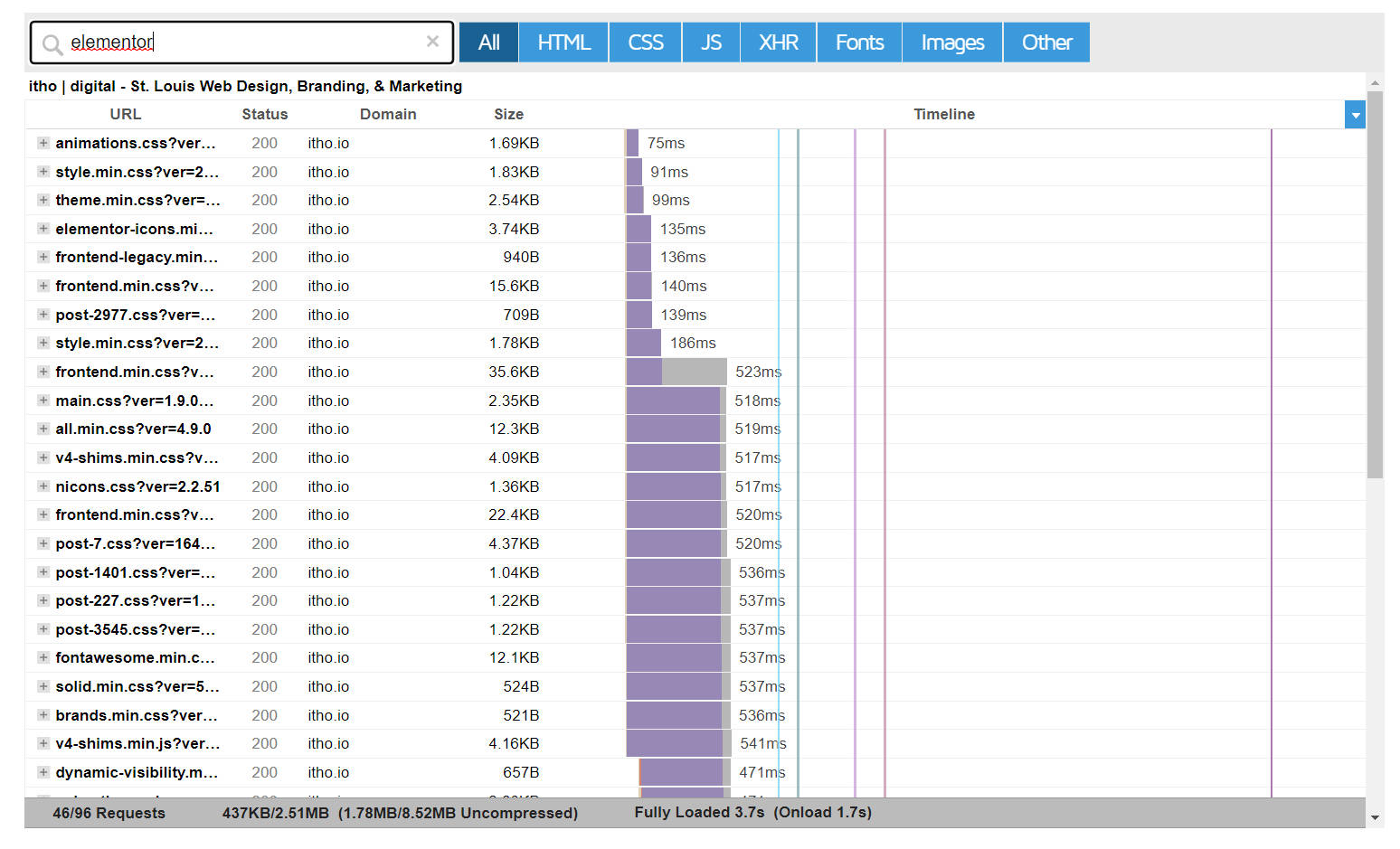
Speed optimisation isn’t a one-time task. Sites change — new plugins get installed, images get uploaded, themes update. Regular monitoring catches regressions before they affect rankings or conversions. Run a full test at least monthly, and always after significant changes.
Recommended testing tools:
- Google PageSpeed Insights: Measures Core Web Vitals using real-world Chrome user data alongside lab scores. The most important tool for SEO.
- GTmetrix: Detailed waterfall analysis that shows exactly which resources are slowing your page down.
- WebPageTest: Advanced testing including filmstrip view, video comparison and multi-location testing.
Also check your Core Web Vitals in Google Search Console under Experience → Core Web Vitals. This shows real-user data from Chrome visitors — far more valuable than lab-only scores for understanding actual performance.
Monitor WordPress Performance
Conclusion: Build a Faster WordPress Website in 2026
Improving WordPress speed in 2026 requires more than simply installing a caching plugin. Modern website performance depends on hosting quality, efficient themes, optimised assets, smart caching and ongoing monitoring — and the sites ranking well today get all of these right simultaneously.
The websites performing best today combine:
- Performance-focused hosting
- Modern CDN delivery
- Lightweight themes
- Optimised images and scripts
- Continuous Core Web Vitals monitoring
Start with hosting and caching — they deliver the biggest gains. Then work through images, code and database. Build regular speed audits into your workflow, and your site will stay competitive as expectations continue to rise.
FAQ
Why is my WordPress site slow in 2026?
The most common causes are:
- Slow hosting
- Heavy themes
- Too many plugins
- Unoptimised images
- Poor caching configuration
Start with a GTmetrix or PageSpeed report to identify the biggest issues on your specific site before making changes.
What is a good WordPress load time?
Aim for an LCP under 2.5 seconds and a TTFB under 800ms. Total page load time under 2 seconds is a realistic target for an optimised site. Anything over 3 seconds and you’re losing a significant portion of your visitors.
Do Core Web Vitals still matter?
Yes. Google continues using Core Web Vitals as ranking signals in 2026. The metrics are LCP (loading), INP (interactivity) and CLS (visual stability) — all measurable in PageSpeed Insights and Search Console.
What is the best caching plugin for WordPress?
WP Rocket, FlyingPress and LiteSpeed Cache are currently among the strongest options depending on your hosting setup. WP Rocket is the most user-friendly; LiteSpeed Cache is the best free option if your host supports it.
Should I use a CDN for WordPress?
Yes. A CDN significantly improves load times, especially for international visitors. Cloudflare’s free plan is a solid starting point for most sites.
Can I improve WordPress speed without coding?
Yes. Most modern optimisation plugins and hosting providers allow major performance improvements without coding knowledge. Some fine-tuning — like editing wp-config.php — requires basic comfort with files, but nothing beyond a determined site owner.
Which image format is best for WordPress in 2026?
WebP and AVIF provide the best balance between quality and file size. Most image optimisation plugins (ShortPixel, Imagify) convert automatically on upload.
How often should I test website performance?
At least monthly and after major plugin, theme or content changes. Also check after any hosting migration or PHP version update.
Does Elementor slow down WordPress?
Elementor can increase page weight if poorly optimised, but with proper caching, unused CSS removal and performance settings it can still achieve strong speed scores. The key is pairing it with a lightweight theme and a good caching plugin.
Is managed WordPress hosting worth it?
For most business websites, yes. Managed hosting improves speed, security and reliability while reducing maintenance workload. The price difference compared to shared hosting is usually offset by better performance and fewer technical headaches.
Plugins and image optimisation can only do so much if the server is slow. Our guide to choosing WordPress hosting in the UK covers server location, TTFB and the hosting features that make the biggest difference to speed.

With over two decades of web design and development expertise, I craft bespoke WordPress solutions at FallingBrick, delivering visually striking, high-performing websites optimised for user experience and SEO.